Deploy a Bun application on DigitalOcean
DigitalOcean is a cloud platform that provides a range of services for building and deploying applications.
This guide deploys a Bun HTTP server to DigitalOcean using a Dockerfile.
Before continuing, make sure you have:
- A Bun application ready for deployment
- A DigitalOcean account
- DigitalOcean CLI installed and configured
- Docker installed and added to your
PATH
Create a new DigitalOcean Container Registry
Create a new Container Registry to store the Docker image.
In the DigitalOcean dashboard, go to Container Registry, and enter the details for the new registry.
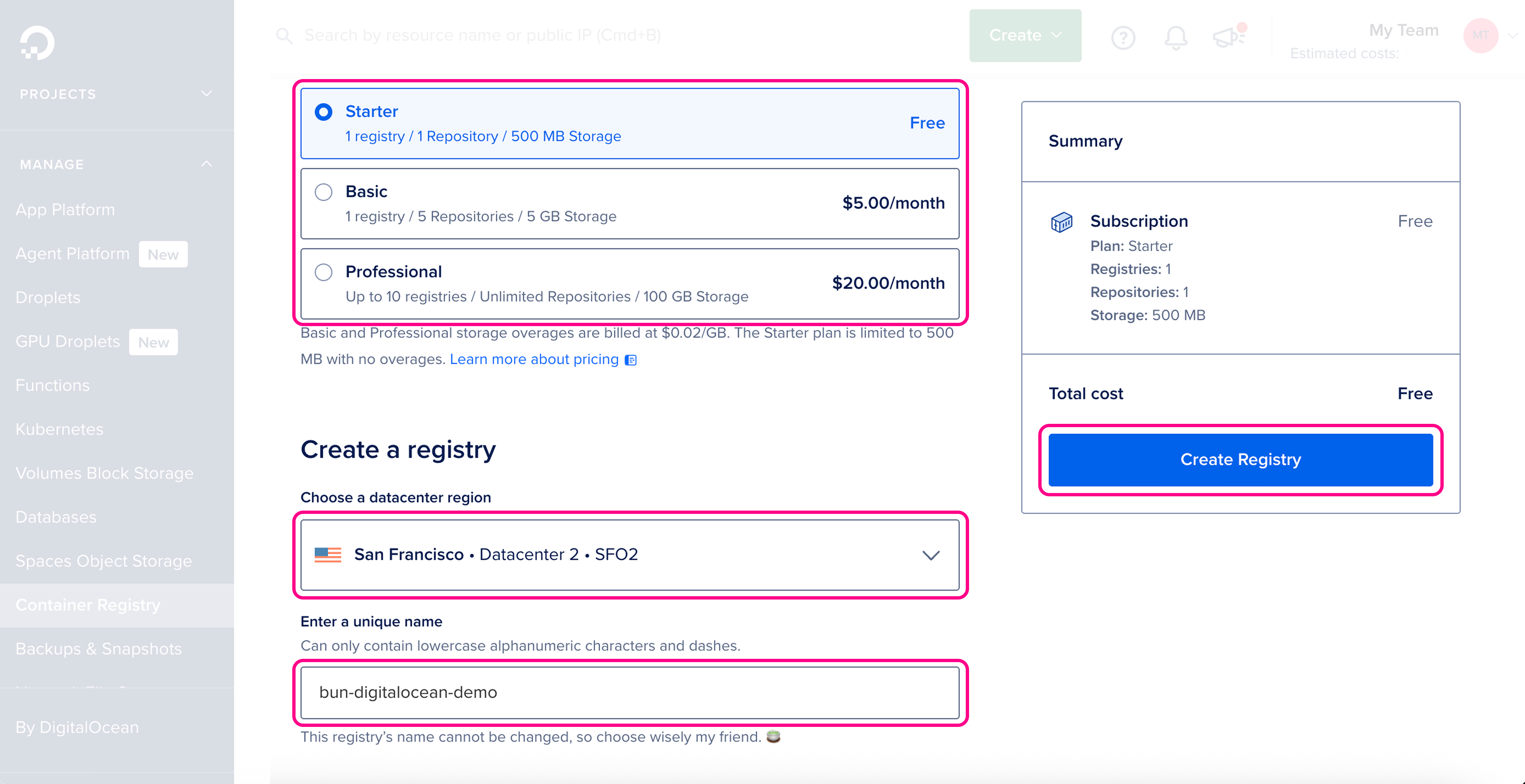
Make sure the details are correct, then click Create Registry.
$ doctl registry create bun-digitalocean-demo

Name                     Endpoint                                           Region slug
bun-digitalocean-demo    registry.digitalocean.com/bun-digitalocean-demo    sfo2
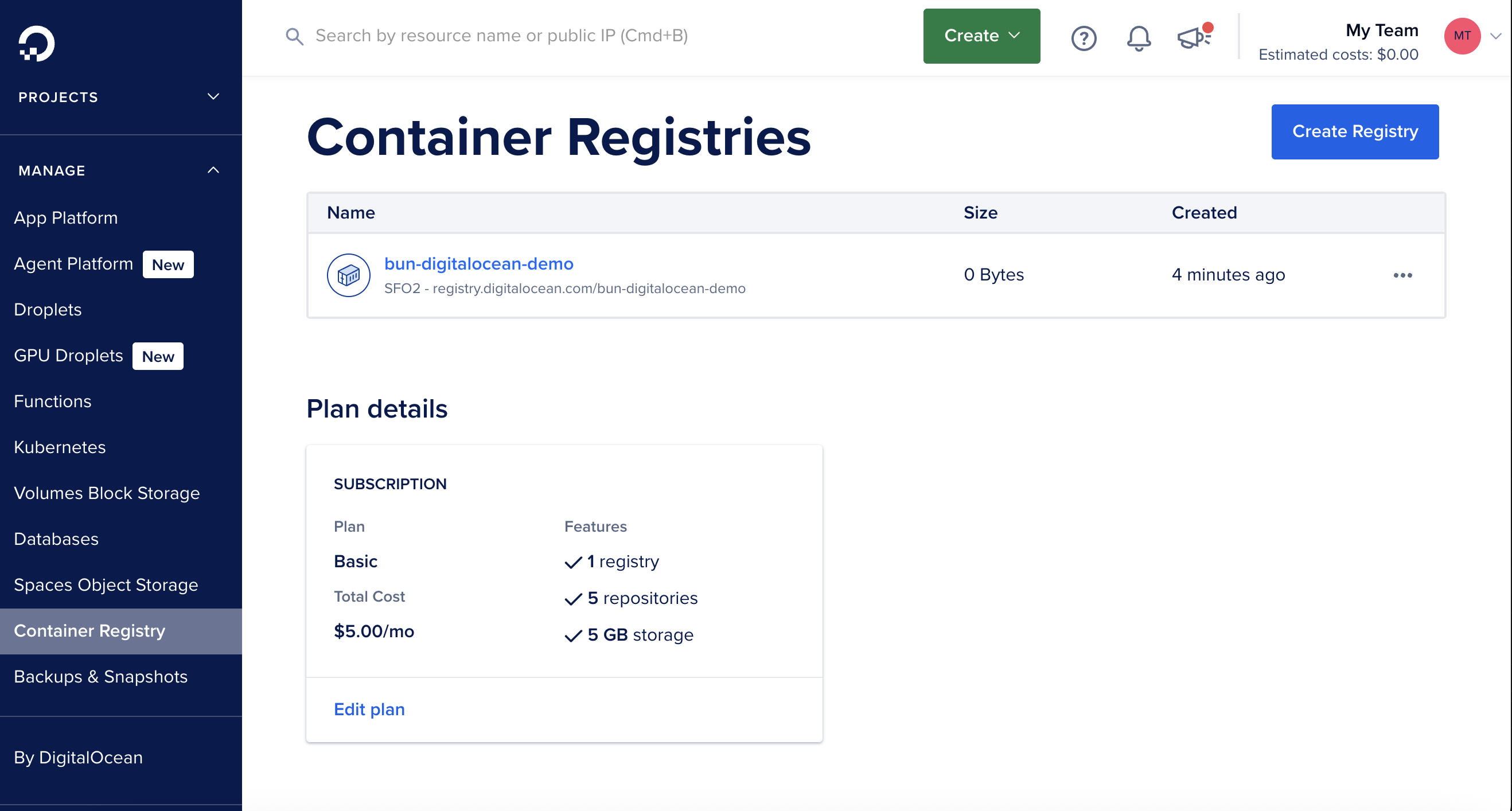
You should see the new registry in the DigitalOcean registry dashboard:
Create a new Dockerfile
Create a new Dockerfile in the root of your project. This file contains the instructions to initialize the container, copy your local project files into it, install dependencies, and start the application.
# Use the official Bun image to run the application
FROM oven/bun:debian

# Set the work directory to `/app`
WORKDIR /app

# Copy the package.json and bun.lock into the container
COPY package.json bun.lock ./

# Install the dependencies
RUN bun install --production --frozen-lockfile

# Copy the rest of the application into the container
COPY . .

# Expose the port (DigitalOcean will set PORT env var)
EXPOSE 8080

# Run the application
CMD ["bun", "index.ts"]
Make sure that the start command corresponds to your application's entry point. This can also be CMD ["bun", "run", "start"] if you have a start script in your package.json.
If your app doesn't have dependencies, you can omit the RUN bun install --production --frozen-lockfile line.
Create a new .dockerignore file in the root of your project. It lists the files and directories to exclude from the container image, such as node_modules, which keeps builds faster and smaller:
node_modules
Dockerfile*
.dockerignore
.git
.gitignore
README.md
LICENSE
.vscode
.env
# Any other files or directories you want to exclude
Authenticate Docker with DigitalOcean registry
Before building and pushing the Docker image, authenticate Docker with the DigitalOcean Container Registry:
$ doctl registry login

Successfully authenticated with registry.digitalocean.com
This command authenticates Docker with DigitalOcean's registry using your DigitalOcean credentials. Without this step, the build and push command fails with a 401 authentication error.
Build and push the Docker image to the DigitalOcean registry
Make sure you're in the directory containing your Dockerfile, then build and push the Docker image to the DigitalOcean registry in one command:
$ docker buildx build --platform=linux/amd64 -t registry.digitalocean.com/bun-digitalocean-demo/bun-digitalocean-demo:latest --push .If you're building on an ARM Mac (M1/M2), you must use docker buildx with --platform=linux/amd64 for compatibility with DigitalOcean's infrastructure. Using docker build without the platform flag creates an ARM64 image that won't run on DigitalOcean.
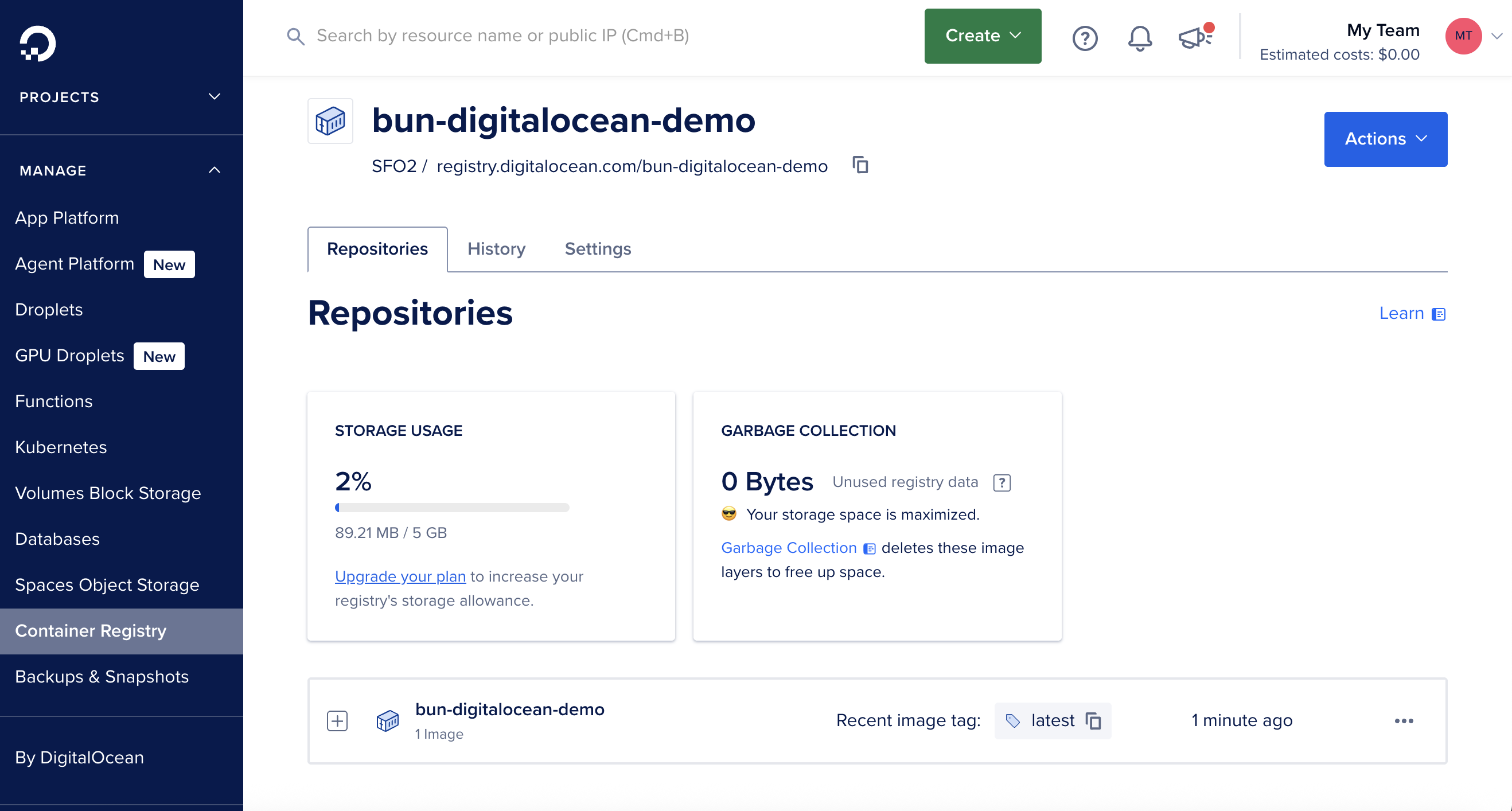
Once the image is pushed, you should see it in the DigitalOcean registry dashboard:
Create a new DigitalOcean App Platform project
In the DigitalOcean dashboard, go to App Platform > Create App. You can create a project directly from the container image.
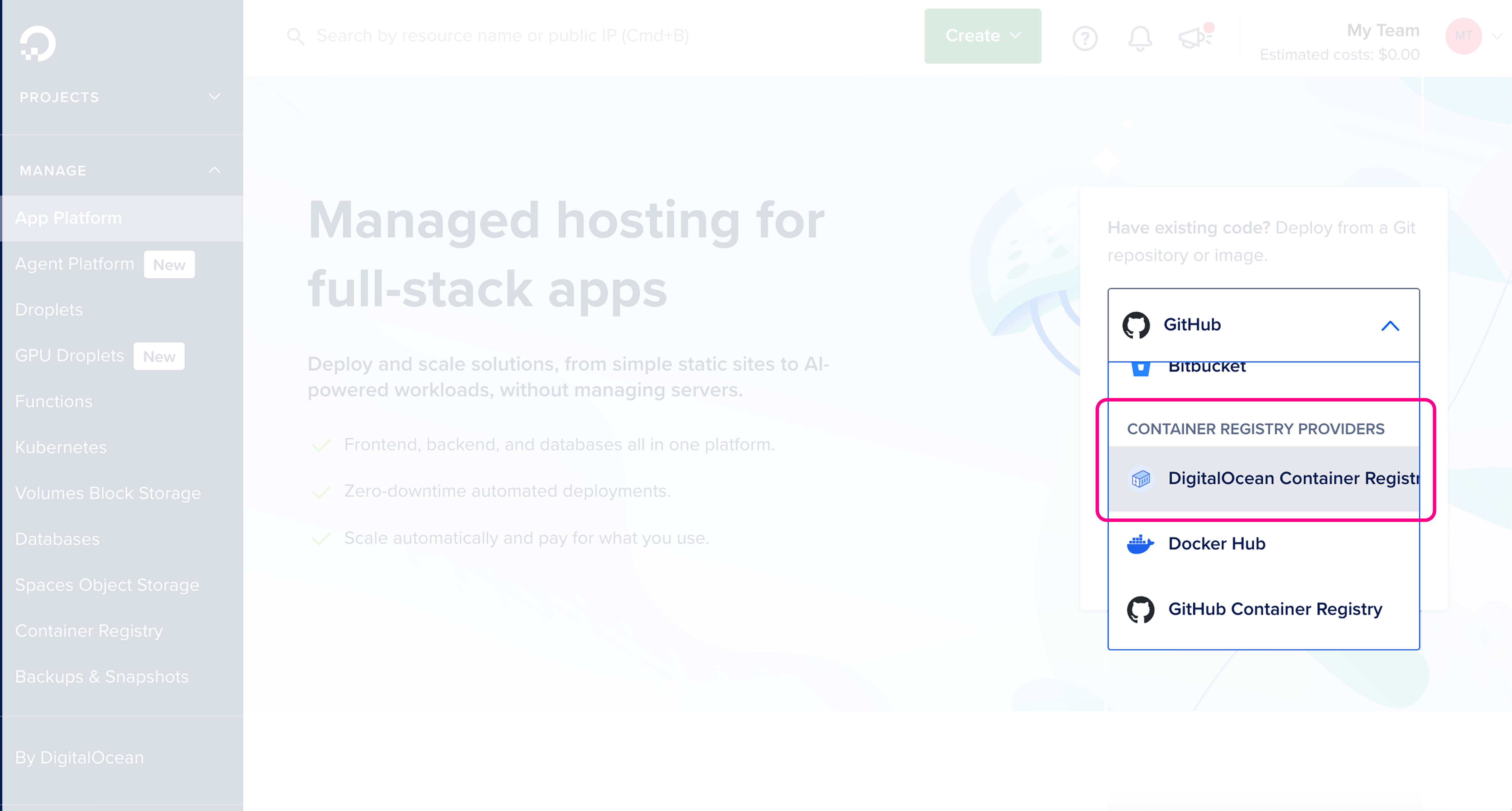
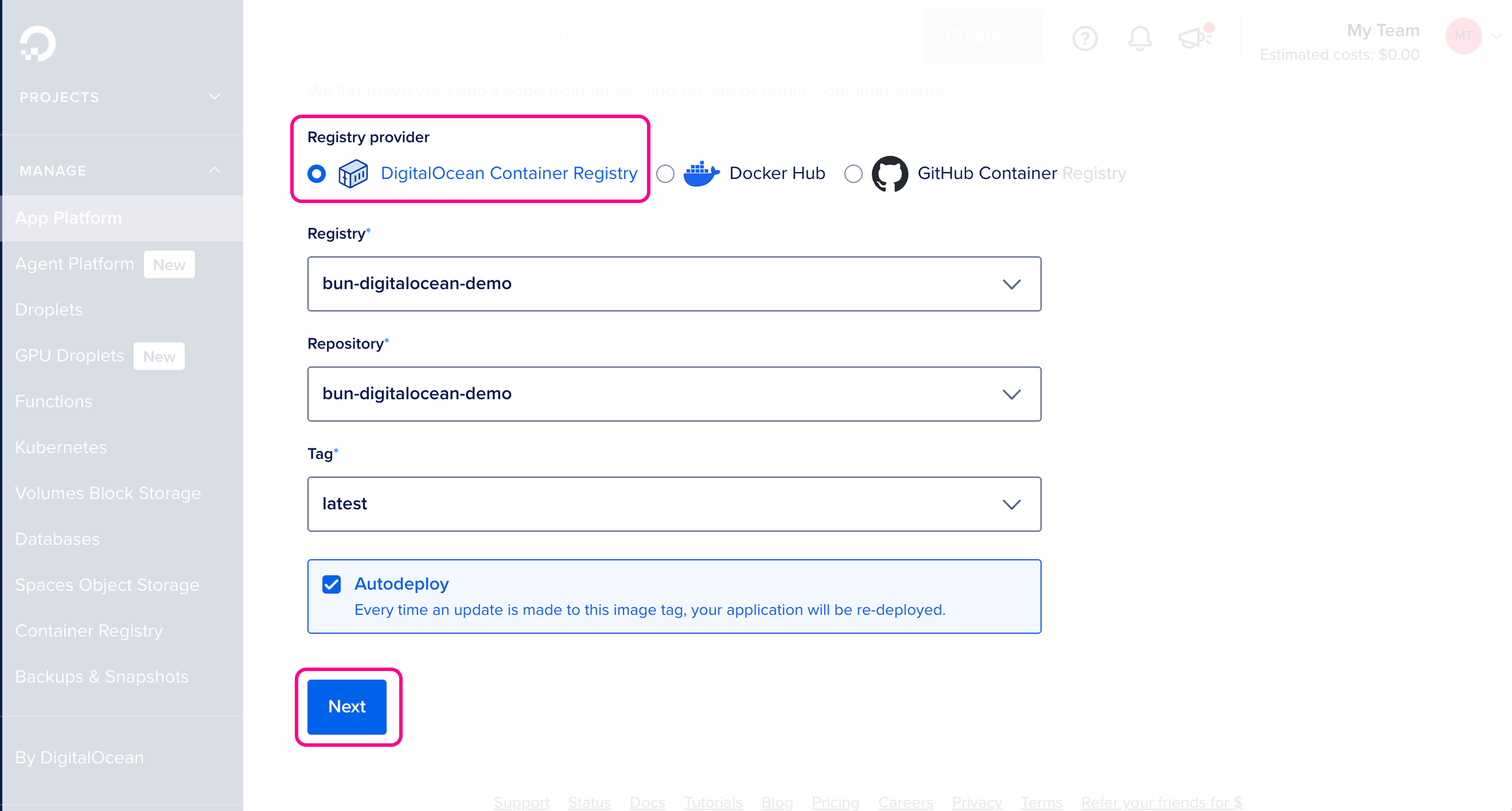
Make sure the details are correct, then click Next.
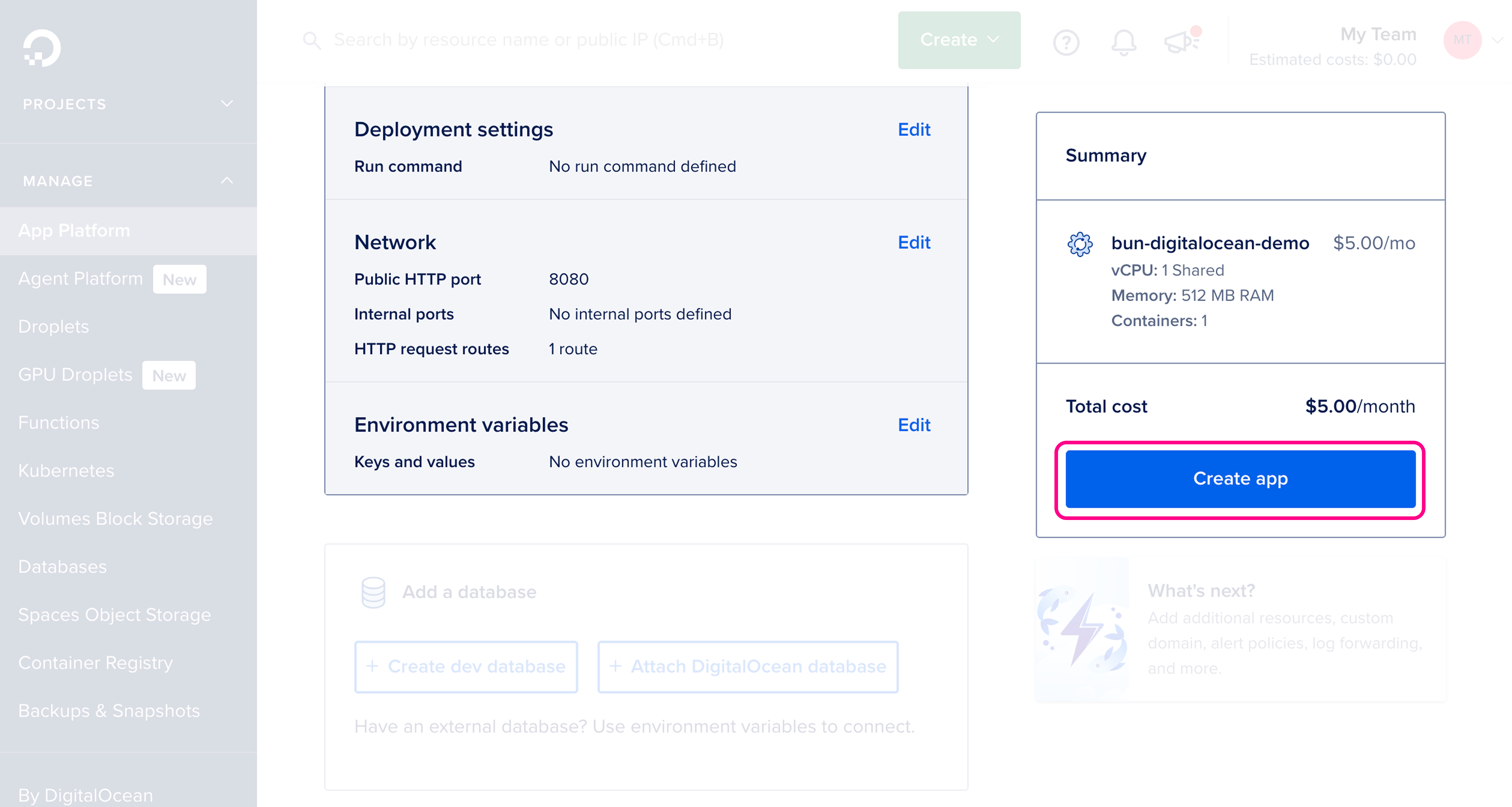
Review and configure resource settings, then click Create app.
Visit your live application
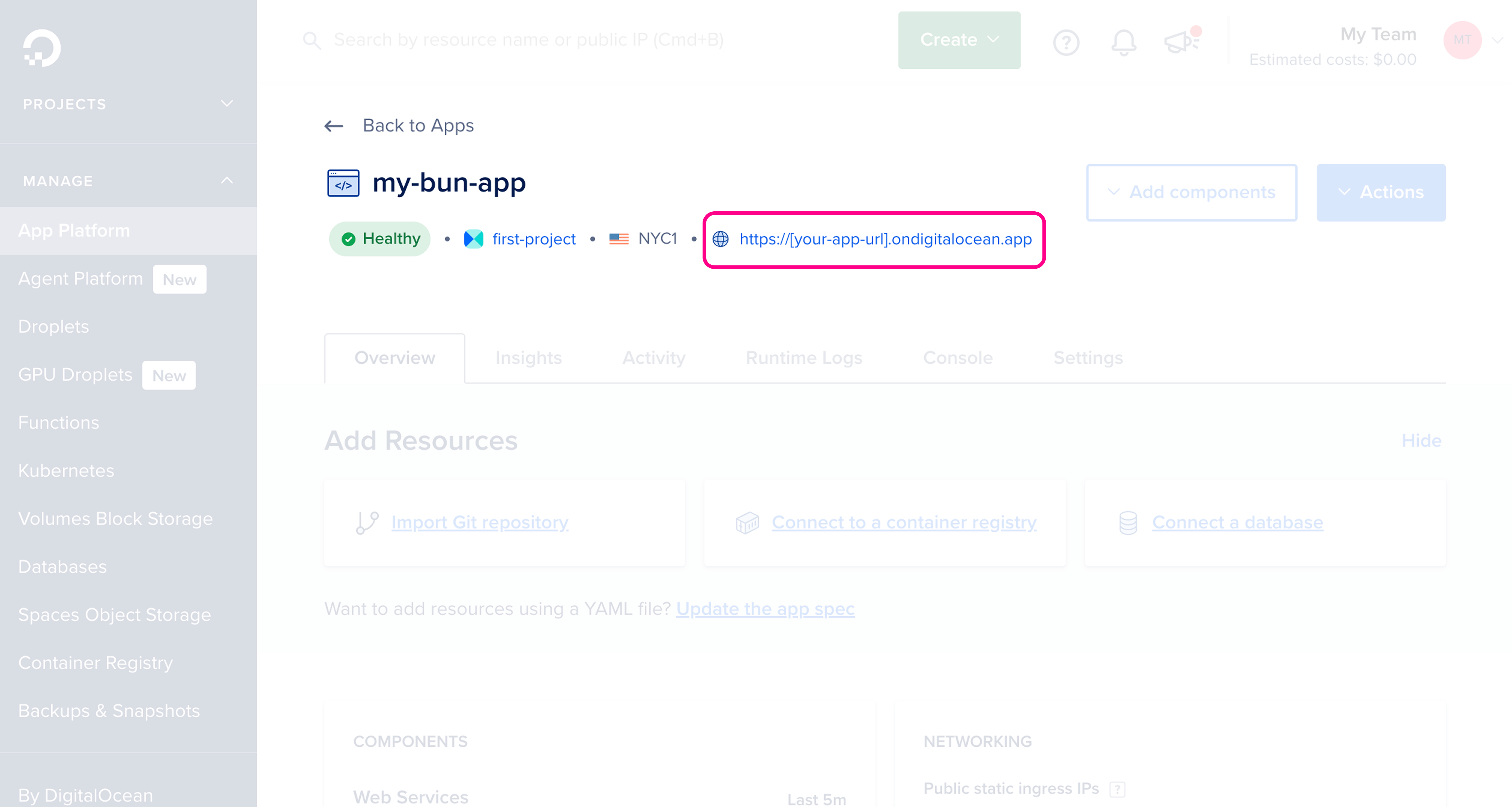
Your app is now live. Once the app is created, you should see it in the App Platform dashboard with its public URL.