Test runner
Bun's fast, built-in, Jest-compatible test runner with TypeScript support, lifecycle hooks, mocking, and watch mode
Bun ships with a fast, built-in, Jest-compatible test runner. Tests run in the Bun runtime and support the following features.
- TypeScript and JSX
- Lifecycle hooks
- Snapshot testing
- UI & DOM testing
- Watch mode with
--watch - Script pre-loading with
--preload
Bun aims for compatibility with Jest, but not everything is implemented. To track compatibility, see this tracking issue.
Run tests
$ bun testTests are written in JavaScript or TypeScript with a Jest-like API. See Writing tests.
import { expect, test } from "bun:test";

test("2 + 2", () => {
  expect(2 + 2).toBe(4);
});
The runner recursively searches the working directory for files that match the following patterns:
*.test.{js|jsx|ts|tsx|mjs|cjs|mts|cts}*_test.{js|jsx|ts|tsx|mjs|cjs|mts|cts}*.spec.{js|jsx|ts|tsx|mjs|cjs|mts|cts}*_spec.{js|jsx|ts|tsx|mjs|cjs|mts|cts}
To filter the set of test files to run, pass additional positional arguments to bun test. Any test file with a path that matches one of the filters runs. Filters are commonly file or directory names; glob patterns are not yet supported.
$ bun test <filter> <filter> ...To filter by test name, use the -t/--test-name-pattern flag.
# run all tests or test suites with "addition" in the name
$ bun test --test-name-pattern addition
To run a specific file in the test runner, make sure the path starts with ./ or / to distinguish it from a filter name.
$ bun test ./test/specific-file.test.tsBy default the test runner runs all tests in a single process: it loads all --preload scripts (see Lifecycle), then runs every file in one shared global. Pass --parallel to spread files across CPU cores instead. If a test fails, the test runner exits with a non-zero exit code.
CI/CD integration
bun test supports a variety of CI/CD integrations.
GitHub Actions
bun test automatically detects when it's running inside GitHub Actions and emits GitHub Actions annotations to the console directly.
No configuration is needed, other than installing bun in the workflow and running bun test.
How to install bun in a GitHub Actions workflow
To use bun test in a GitHub Actions workflow, add the following step:
jobs:
  build:
    name: build-app
    runs-on: ubuntu-latest
    steps:
      - name: Checkout
        uses: actions/checkout@v4
      - name: Install bun
        uses: oven-sh/setup-bun@v2
      - name: Install dependencies # (assuming your project has dependencies)
        run: bun install # You can use npm/yarn/pnpm instead if you prefer
      - name: Run tests
        run: bun test
JUnit XML reports (GitLab, etc.)
To write a JUnit XML report, pass --reporter=junit together with --reporter-outfile.
$ bun test --reporter=junit --reporter-outfile=./bun.xmlbun test still writes to stdout/stderr as usual, and writes the JUnit XML report to the given path at the end of the run.
JUnit XML is a popular format for reporting test results in CI/CD pipelines.
Timeouts
Use the --timeout flag to specify a per-test timeout in milliseconds. If a test times out, it is marked as failed. The default value is 5000.
# default value is 5000
$ bun test --timeout 20
Concurrent test execution
To run test files across CPU cores, see --parallel. The flags below control concurrency of tests within a file.
By default, Bun runs all tests sequentially within each test file. Concurrent execution runs async tests in parallel, which speeds up test suites with independent tests.
--concurrent flag
Use the --concurrent flag to run all tests concurrently within their respective files:
$ bun test --concurrentWhen this flag is enabled, all tests run in parallel unless marked with test.serial.
--max-concurrency flag
Control the maximum number of tests running simultaneously with the --max-concurrency flag:
# Limit to 4 concurrent tests
$ bun test --concurrent --max-concurrency 4

# Default: 20
$ bun test --concurrent
This helps prevent resource exhaustion when running many concurrent tests. The default value is 20.
test.concurrent
Mark individual tests to run concurrently, even when the --concurrent flag is not used:
import { test, expect } from "bun:test";

// These tests run in parallel with each other
test.concurrent("concurrent test 1", async () => {
  await fetch("/api/endpoint1");
  expect(true).toBe(true);
});

test.concurrent("concurrent test 2", async () => {
  await fetch("/api/endpoint2");
  expect(true).toBe(true);
});

// This test runs sequentially
test("sequential test", () => {
  expect(1 + 1).toBe(2);
});
test.serial
Force tests to run sequentially, even when the --concurrent flag is enabled:
import { test, expect } from "bun:test";

let sharedState = 0;

// These tests must run in order
test.serial("first serial test", () => {
  sharedState = 1;
  expect(sharedState).toBe(1);
});

test.serial("second serial test", () => {
  // Depends on the previous test
  expect(sharedState).toBe(1);
  sharedState = 2;
});

// This test can run concurrently if --concurrent is enabled
test("independent test", () => {
  expect(true).toBe(true);
});

// Chaining test qualifiers
test.failing.each([1, 2, 3])("chained qualifiers %d", input => {
  expect(input).toBe(0); // This test is expected to fail for each input
});
Retry failed tests
Use the --retry flag to automatically retry failed tests up to a given number of times. If a test fails and then passes on a subsequent attempt, it is reported as passing.
$ bun test --retry 3Per-test { retry: N } overrides the global --retry value:
// Uses the global --retry value
test("uses global retry", () => {
  /* ... */
});

// Overrides --retry with its own value
test("custom retry", { retry: 1 }, () => {
  /* ... */
});
You can also set this in bunfig.toml:
[test]
retry = 3
Rerun tests
Use the --rerun-each flag to run each test multiple times. This surfaces flaky or non-deterministic test failures.
$ bun test --rerun-each 100Randomize test execution order
Use the --randomize flag to run tests in a random order. This helps detect tests that depend on shared state or execution order.
$ bun test --randomizeWith --randomize, the seed used for randomization is displayed in the test summary:
$ bun test --randomize

# ... test output ...
 --seed=12345
 2 pass
 8 fail
Ran 10 tests across 2 files. [50.00ms]
Reproducible random order with --seed
Use the --seed flag to specify the randomization seed and reproduce the same test order when debugging order-dependent failures.
# Reproduce a previous randomized run
$ bun test --seed 123456
The --seed flag implies --randomize, so you don't need to specify both. The same seed always produces the same test execution order.
Bail out with --bail
Use the --bail flag to abort the test run after a given number of test failures. By default, Bun runs all tests and reports all failures, but in CI it can be preferable to stop early and reduce CPU usage.
# bail after 1 failure
$ bun test --bail

# bail after 10 failure
$ bun test --bail=10
Watch mode
Like bun run, bun test accepts the --watch flag to watch for changes and re-run tests.
$ bun test --watchLifecycle hooks
Bun supports the following lifecycle hooks:
| Hook | Description |
|---|---|
beforeAll | Runs once before all tests. |
beforeEach | Runs before each test. |
afterEach | Runs after each test. |
afterAll | Runs once after all tests. |
Define hooks inside test files, or in a separate file preloaded with the --preload flag.
$ bun test --preload ./setup.tsSee Lifecycle.
Mocks
Create mock functions with the mock function.
import { test, expect, mock } from "bun:test";
const random = mock(() => Math.random());

test("random", () => {
  const val = random();
  expect(val).toBeGreaterThan(0);
  expect(random).toHaveBeenCalled();
  expect(random).toHaveBeenCalledTimes(1);
});
Alternatively, use jest.fn(); it behaves identically.
import { test, expect, mock } from "bun:test";
import { test, expect, jest } from "bun:test";

const random = mock(() => Math.random());
const random = jest.fn(() => Math.random());
See Mocks.
Snapshot testing
bun test supports snapshot testing.
// example usage of toMatchSnapshot
import { test, expect } from "bun:test";

test("snapshot", () => {
  expect({ a: 1 }).toMatchSnapshot();
});
To update snapshots, use the --update-snapshots flag.
$ bun test --update-snapshotsSee Snapshots.
UI & DOM testing
Bun is compatible with popular UI testing libraries:
See DOM testing.
Large codebases
For a suite with thousands of test files, bun test has several knobs that stack — worker processes, isolation level, sharding across machines, and duration-aware scheduling. Each is covered in depth on Parallel & isolated test runs; here is how they fit together, roughly in order of payoff:
1. Use every core: --parallel. One worker per core, files handed out one at a time.
2. Decide how much isolation you need. --parallel gives every file a fresh global, which is the safe default and what Jest/Vitest do. If your files don't leak state into each other (they already pass under plain bun test, which shares one global), --parallel --no-isolate lets each worker evaluate your imports and preloads once instead of once per file. On suites made of many small files that is the single biggest win — see how it compares.
3. Split across machines: --shard=i/n. Deterministic, no coordinator; each CI job runs one slice, and each slice still uses --parallel locally.
4. Balance by time, not count: --timings. With recorded durations, shards are cut so each gets about the same total time (longest-processing-time style, but keeping path-neighbours together so a worker's module cache stays warm), each worker starts its slowest file first, and idle workers steal the slowest remaining file — so the run isn't held up by one long file that happened to start last.
5. Keep the timings fresh automatically: --update-timings. Each shard writes the durations of the files it ran; the next run reads all of them. In GitHub Actions that looks like:
jobs:
  test:
    strategy:
      matrix:
        shard: [1, 2, 3, 4]
    steps:
      - uses: actions/checkout@v4
      - uses: oven-sh/setup-bun@v2
      - run: bun install
      # last successful run's per-shard timings (nothing on the very first run)
      - uses: actions/cache/restore@v4
        with:
          path: .bun-test-timings
          key: bun-test-timings-${{ github.run_id }}
          restore-keys: bun-test-timings-
      - run: |
          bun test --parallel --shard=${{ matrix.shard }}/4 --update-timings \
            --timings=.bun-test-timings/next/${{ matrix.shard }}.json \
            $(ls .bun-test-timings/*.json 2>/dev/null | sed 's/^/--timings=/')
      - uses: actions/upload-artifact@v4
        with:
          name: timings-${{ matrix.shard }}
          path: .bun-test-timings/next/${{ matrix.shard }}.json
  save-timings:
    needs: test
    runs-on: ubuntu-latest
    steps:
      - uses: actions/download-artifact@v4
        with:
          pattern: timings-*
          path: .bun-test-timings
          merge-multiple: true
      - uses: actions/cache/save@v4
        with:
          path: .bun-test-timings
          key: bun-test-timings-${{ github.run_id }}
Every shard must read the same set of timings files for the shards to add up to the whole suite, which is why a run reads the previous run's files (restored from the cache) and writes its own where sibling shards still in flight won't pick them up (next/ above). Add --no-isolate to the bun test line if step 2 applies to you.
6. Within a file: test.concurrent for I/O-bound tests that spend their time awaiting.
Performance
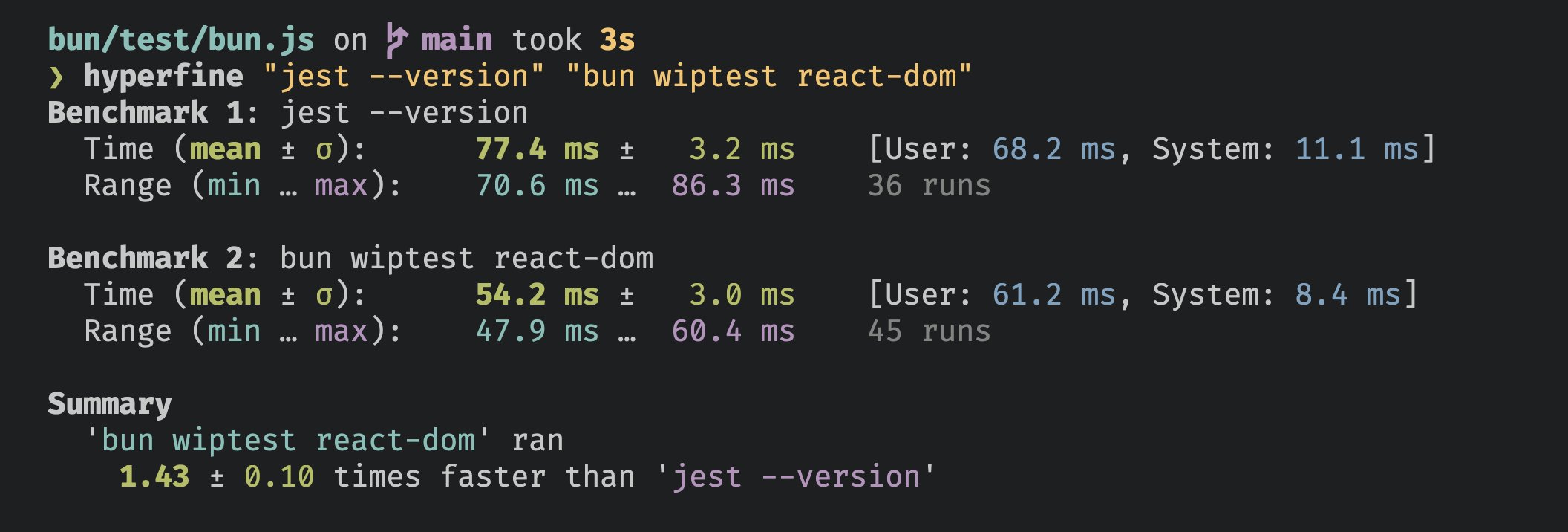
Bun's test runner is fast.
AI Agent Integration
When you use Bun's test runner with an AI coding assistant, you can enable quieter output that keeps failure details but drops the rest of the noise.
Environment Variables
Set any of the following environment variables to enable AI-friendly output:
CLAUDECODE=1- For Claude CodeREPL_ID=1- For ReplitAGENT=1- Generic AI agent flag
Behavior
When an AI agent environment is detected:
- Only test failures are displayed in detail
- Passing, skipped, and todo test indicators are hidden
- Summary statistics remain intact
# Example: Enable quiet output for Claude Code
$ CLAUDECODE=1 bun test

# Still shows failures and summary, but hides verbose passing test output
CLI Usage
$ bun test <patterns>Execution Control
Set the per-test timeout in milliseconds (default 5000)
Re-run each test file NUMBER times, helps catch certain bugs
Treat all tests as test.concurrent() tests
Run tests in random order
Set the random seed for test randomization
Exit the test suite after NUMBER failures. If you do not specify a number, it
defaults to 1.
Maximum number of concurrent tests to execute at once (default 20)
Test Filtering
Include tests that are marked with test.todo()
Run only tests with a name that matches the given regex. Alias: -t
Reporting
Test output reporter format. Available: junit (requires --reporter-outfile),
dots. Default: console output.
Output file path for the reporter format (required with --reporter)
Enable dots reporter. Shorthand for --reporter=dots
Coverage
Generate a coverage profile
Report coverage in text and/or lcov. Defaults to text
Directory for coverage files. Defaults to coverage
Snapshots
Update snapshot files. Alias: -u
Examples
Run all test files:
$ bun testRun all test files with "foo" or "bar" in the file name:
$ bun test foo barRun all test files, only including tests whose names includes "baz":
$ bun test --test-name-pattern baz